Microsoft Is Retiring These Tools in 2026 (What to Do Now)

Are you ready for the upcoming Microsoft 365 retirements? This video highlights critical dates and changes for 2026, including the retirement of SharePoint 2013 Workflows and SharePoint Designer 2013. We’ll discuss the impact on your business processes and why migrating to modern alternatives like Power Automate is essential for a seamless digital workplace. Planning now will help you navigate these changes and maintain efficient workflow automation within your M365 environment.
In this video, I walk through the most important Microsoft retirements and end-of-support deadlines you need to be aware of, explain what “retirement” vs “end of support” actually means, and outline what you should do now to reduce risk and avoid business disruption.
These changes especially impact organizations still relying on legacy tools from the 2010–2016 era — which many businesses have quietly been “set and forgotten” for years.
Key Microsoft 365 retirements covered in this video:
April 2, 2026
SharePoint 2013 workflows will stop running entirely
SharePoint Add-ins will stop working
July 14, 2026
SharePoint Designer 2013: End of support
InfoPath 2013: End of support
October 2026
Office 2021 apps: End of support
By end of 2026
Dynamics 365 Mixed Reality tools: End of support
What we cover:
Why Microsoft retirements matter for business continuity
Retirement vs end of support (and why the difference matters)
The real-world risks of unsupported tools
Which tools are most commonly still in use
Practical modernization paths (Power Automate, Power Apps, SPFx, Microsoft 365 Apps)
Why planning now matters — even if things appear to “still work”
If you’re using SharePoint workflows, InfoPath forms, SharePoint Designer, or Office 2021, this is something you should not ignore.
Tip: Keep an eye on the Microsoft 365 Admin Center and Microsoft’s retirement announcements so you’re not caught off guard.
—
#Microsoft365
#SharePoint
#MicrosoftRetirements
#SharePointWorkflows
#PowerAutomate
#InfoPath
#Microsoft365Admin
#SmallBusinessIT
Why Every Operations Manager Needs “No-Code” SharePoint Skills in 2026
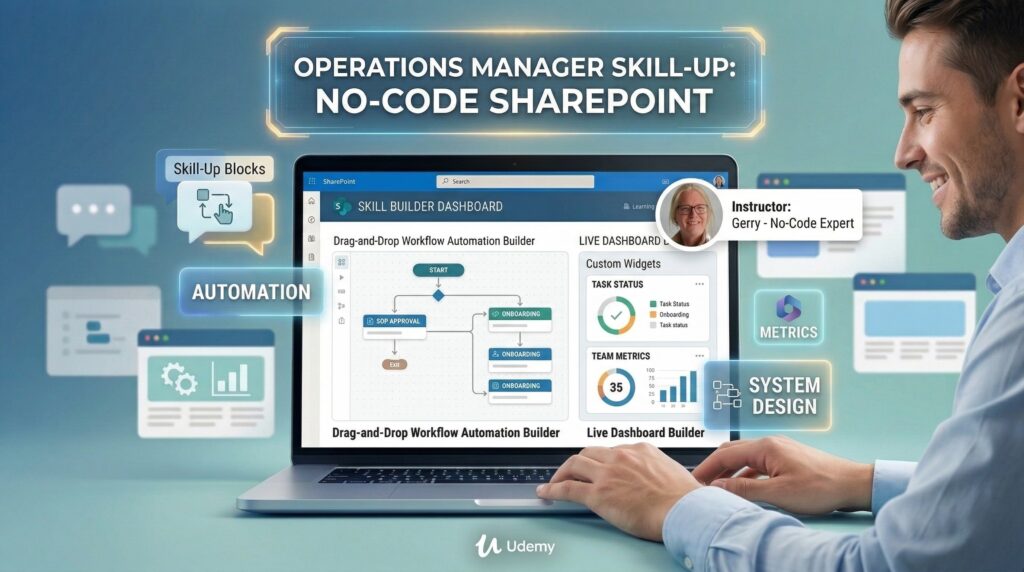
If you work in Operations, HR, or Office Management, your job title is often a polite way of saying “The Person Who Solves Everyone’s Problems.” You are the keeper of the SOPs, the manager of the onboarding process, and the person who knows where everything is. But as teams become more hybrid and digital, “knowing […]
The “Digital HQ” Blueprint

Building a SharePoint Intranet? Don’t Start with a Blank Page Most small business owners know they need a central “Digital HQ,” but the thought of organizing a SharePoint site often feels like a second full-time job. At Lightlever, we specialize in building these intranets, and we’ve found a shortcut to beat the “blank page” paralysis: […]
What is the Best Intranet Software for Small Businesses in 2026?
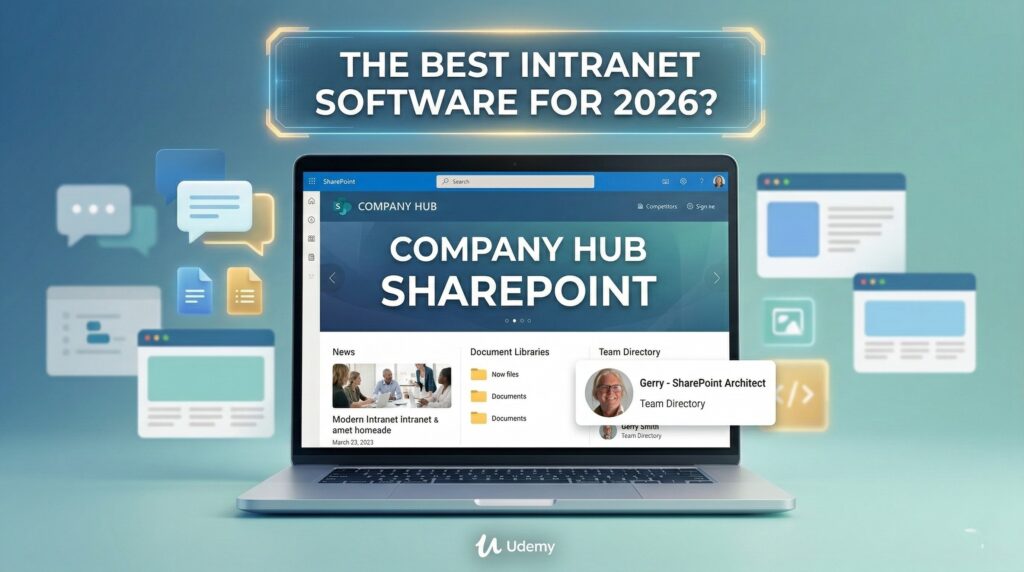
If you are looking for a way to centralize your team’s knowledge, you’ve likely realized that there are a lot of options out there. From Slack and Teams to fancy “out-of-the-box” platforms that cost thousands a month, the choice can be paralyzing. But for most businesses already using the Microsoft ecosystem, there is one clear […]
How to Build a Company Intranet for Free (Without Hiring an IT Team)

Digging through three different folders, 12 Slack channels, and more reply-all email threads than you’d care to admit… just to find the latest version of a company policy? It’s frustrating, it wastes time, and honestly? A mood-killer for any team. Most people think building a “real” company intranet requires a massive budget and a team […]
Save 2 Hours a Week: The Small Business Guide to Microsoft 365 AI

Grab your Free AI Prompt Starter Pack here: https://lightlever.ca/free_guide
Are you tired of AI giving you generic, useless answers? In this guide, I’m showing small business owners how to stop treating AI like a search engine and start treating it like a teammate.
I’ve spent months testing prompts inside Microsoft 365 to find out what actually saves time—and what is just a distraction. I’m introducing the Meta-Prompt Method, a way to teach AI your brand voice and business goals so it delivers work you can actually use.
In this free guide, you’ll learn how to:
Automate Filing: Move email attachments to SharePoint automatically.
Master Follow-ups: Draft professional client emails in seconds.
Summarize Chaos: Turn messy email threads into clear action items.
Run Better Meetings: Generate agendas and recaps that actually assign tasks.
– and a few other valuable things!
#Microsoft365 #AIforBusiness #SmallBusinessTips #ProductivityHacks #MicrosoftCopilot #Automation #WorkflowOptimization #EntrepreneurLife #TechSimplified #Lightlever #GerryBrimacombe
Team Sites vs Communication Sites: A Practical Comparison

What’s the real difference between a SharePoint Team Site and a Communication Site—and why does it matter?
In this video, I explain:
• The purpose of each site type
• Collaboration vs broadcasting
• One-to-many vs many-to-many communication
• Microsoft 365 Groups and why they matter
• Permissions, layout, and real-world use cases
Choosing the wrong site type can create problems later, especially when building an intranet or department portal. This walkthrough helps you make the right choice from the start.
If you’re working with SharePoint Online, Microsoft 365, or building an intranet, this is a foundational concept you need to understand.
—
#SharePoint #Microsoft365 #SharePointOnline #Intranet #DigitalWorkplace #MicrosoftTeams #SharePointTips #Office365 #CollaborationTools
3 Ways to Convert Excel to SharePoint Lists (And the One I Recommend)

In this video, Gerry shows three practical ways to convert Excel data into SharePoint Lists — and explains which method you should actually use in real projects.
Excel is great, but when your data is just rows and columns, SharePoint Lists give you permissions, views, forms, automation, and structure that spreadsheets can’t.
You’ll learn:
How to import Excel directly into a SharePoint List (and the hidden problems)
Why internal column names matter for Power Automate, Power Apps, and JSON formatting
How to copy and paste Excel data safely using Grid View
When Power Automate is the right (and wrong) choice for loading data
The recommended approach: designing your list properly before importing data
This is real-world SharePoint guidance — not theory.
If you work with Microsoft 365, SharePoint, or Excel regularly, this will save you time and frustration.
👍 Like & subscribe for more practical Microsoft 365 and SharePoint guidance
💬 Leave a comment if you want templates or help with your own lists
—
#SharePoint, #SharePointLists, #Microsoft365, #Office365, #ExcelToSharePoint, #M365, #PowerAutomate, #NoCode, #BusinessAutomation, #ModernWorkplace, #Productivity
SharePoint List Features You’re Probably Not Using (But Should)
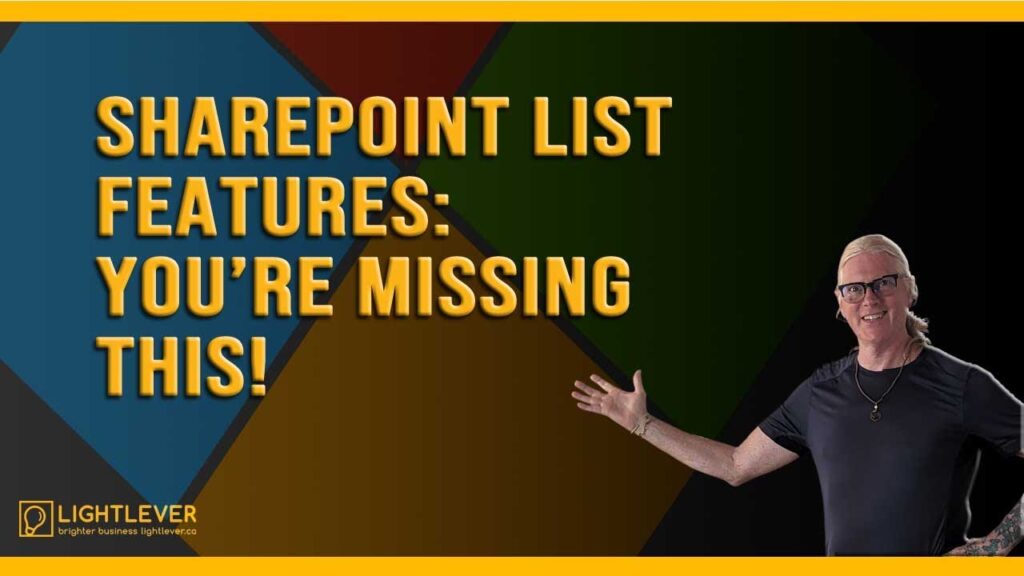
This video explains features of SharePoint lists that users often overlook. It demonstrates how to use these lists effectively by showcasing tips and tricks, contrasting them with Excel usage, and creating rules within SharePoint. Learn how to optimize your SharePoint list view and leverage the full potential of lists in SharePoint. This sharepoint tutorial will help you get the most out of Microsoft SharePoint.
Get the free AI guide at: https://lightlever.ca/free_guide
Get the Fast-Track Intrannet Setup Kit at: https://sharepointinpractice.com/
—
#SharePoint, #Microsoft365, #SharePointLists, #Office365, #M365
🔴Live

Use the camera to document the deeds of life